
Hosthob Corp
FinishLine Forecast
Documentation for setup, install, configuration, usage, Premium features, support, and privacy.
What it does
FinishLine Forecast adds a Forecast project page in Jira Cloud that estimates when remaining work will finish. It uses completed throughput (velocity), optional sprint plan dates, burn-up charts, epic-level risk, and — with Premium — hit-date probability, what-if simulation, and forecast history.
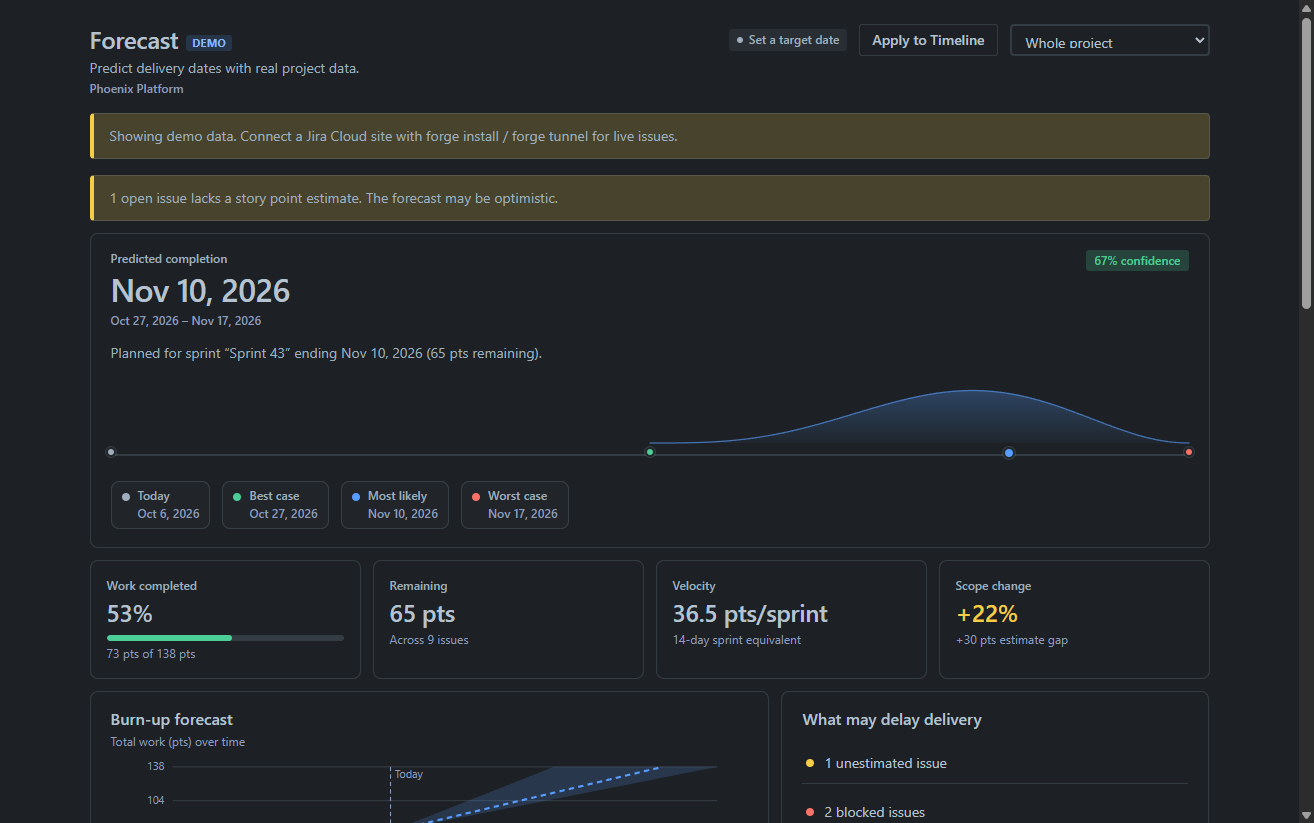
- When will this project (or epic / team / component) finish?
- Are we on track vs a target date?
- Which epics look risky?
- What happens if we cut or add scope? (Premium)
Requirements
- Jira Cloud site (Software projects recommended)
- Permission to install Marketplace / Forge apps
- Project browse / issue view access for users who open Forecast
- Optional: story points or remaining time estimates for best results
Install
- Open the Atlassian Marketplace listing for FinishLine Forecast (or Apps → Manage apps → Find new apps on your site).
- Click Get it now / Try it free and select your Jira Cloud site.
- Review requested permissions and approve install.
- Open any Jira Software project → project navigation → Forecast.
Permissions (scopes)
| Scope | Why it is needed |
|---|---|
read:jira-work |
Search open and recently completed issues, field metadata (story points / estimates), sprint fields |
storage:app |
Persist per-project forecast settings and Premium forecast history |
write:jira-work |
Optional Apply to Timeline: write epic forecast dates to Jira Due date (and Start date when empty) |
The app runs on Atlassian (Forge). It does not call Hosthob servers and has no external remotes / egress for forecast data.
First-time setup
- Open a project with real work (or enough completed history).
- Go to Forecast.
- Choose sizing mode: Story points or Time (remaining estimate, else original estimate).
- Set lookback (14 / 28 / 56 days). Default 28 works for most teams.
- Optionally set a target date for On track / At risk / Behind status.
- Use scope filters (project, epic, team, component, assignee) when you need a subset forecast.
Settings are saved per project in Forge app storage.
Configuration
| Setting | Options | Effect |
|---|---|---|
| Sizing mode | Story points / Time | How remaining work and throughput are measured |
| Lookback | 14 / 28 / 56 days | Window for completed work used as velocity |
| Target date | Date or empty | Compared to forecast for status |
| Scope | Project / epic / team / component / assignee | Narrows issues included |
Usage
Predicted completion
- Best / most-likely / worst finish dates when enough data exists
- Status vs target: On track, At risk, Behind, or prompt to set a target
- Short explanation of inputs (e.g. points completed over the lookback)
Metrics and burn-up
- Work completed, remaining, velocity, and scope change
- Burn-up chart of progress vs forecast trajectory
Dashboard gadget / commitment
Add the FinishLine Forecast gadget to a Jira dashboard for a shared “number in the room”: most-likely finish, status vs target, and a compact steering view without opening the full Forecast page.
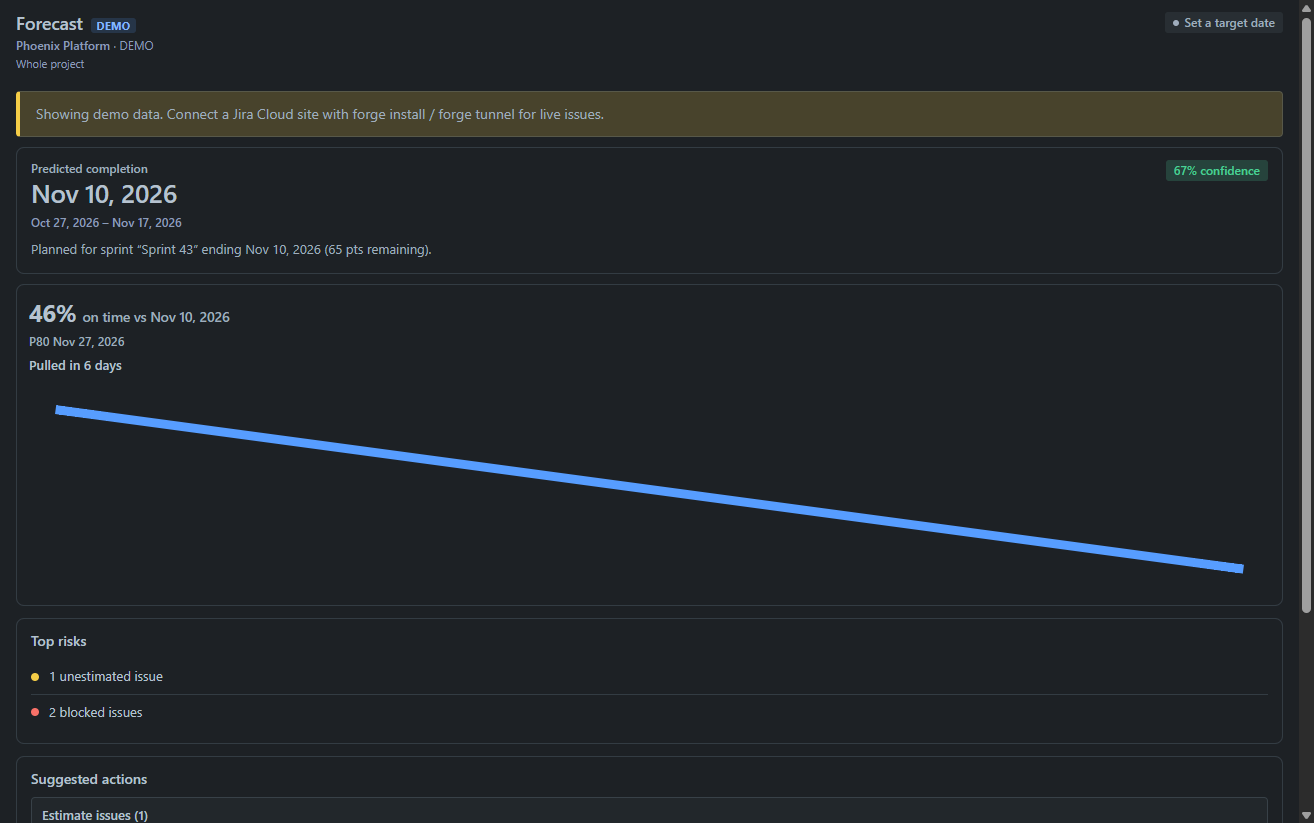
Risks, actions, and epics
- Delivery risks and suggested actions
- Epic forecast table with progress and risk badges
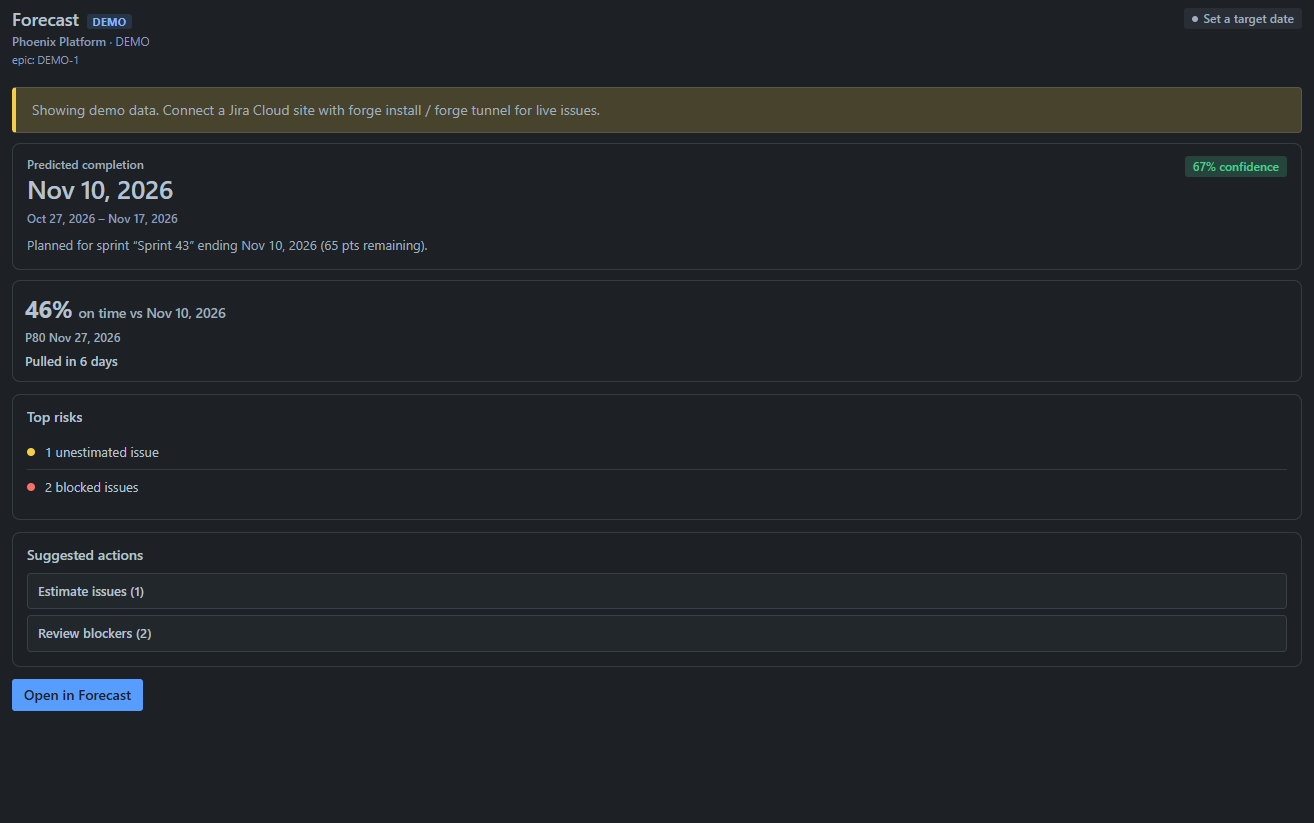
- Epic glance / commitment card on epic issues for a quick forecast read without leaving the issue
- Apply to Timeline: push epic forecast dates into Jira Due / Start for native Timeline bars
Demo mode
After install, open Forecast with ?demo=1 for a sample dataset, or use the local demo UI during development.
Premium
Premium requires an active Marketplace license (paid or trial as configured on the listing).
| Feature | Description |
|---|---|
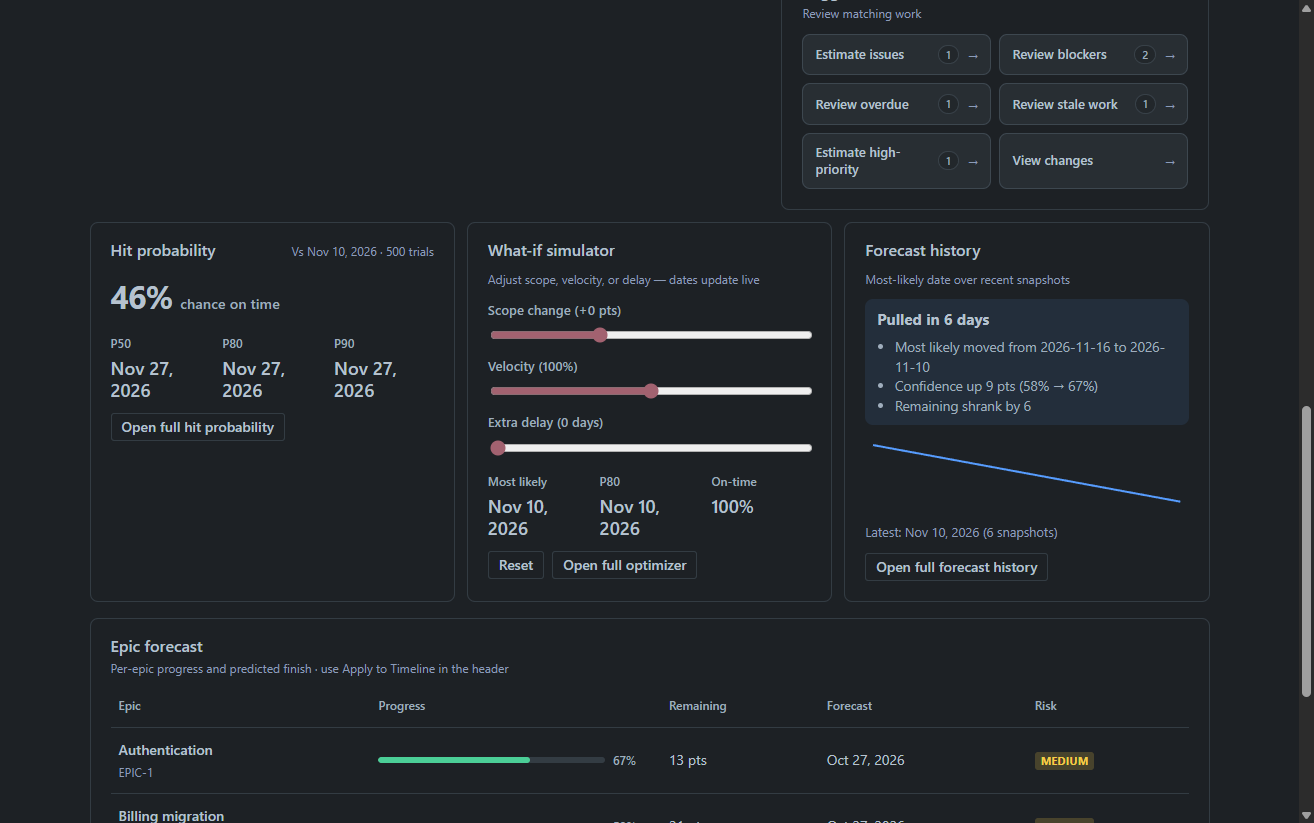
| Hit-date probability | Probability / percentile view of finishing by a given date |
| What-if simulator | Explore how scope or throughput changes move the forecast |
| Forecast history | Snapshots of past forecasts for the project |
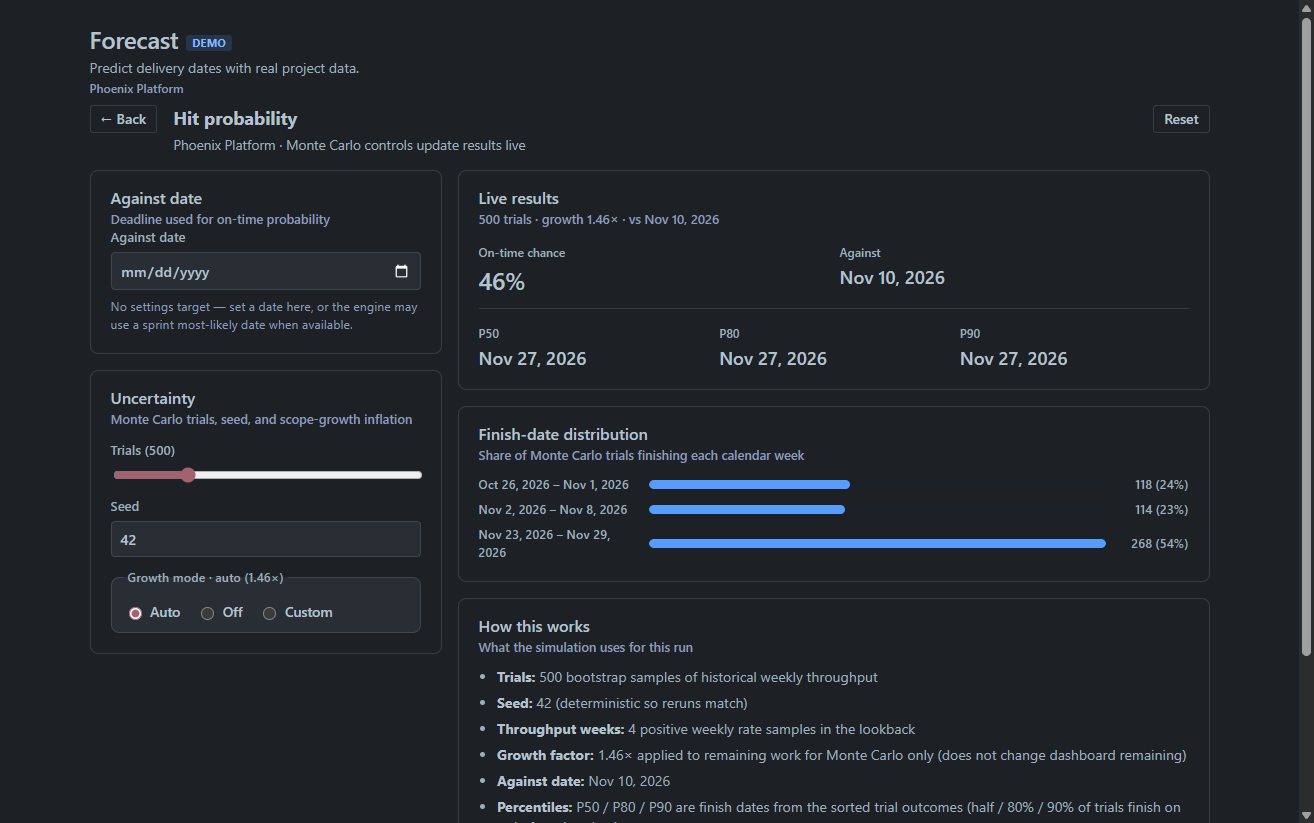
Hit-date probability
Monte Carlo–style on-time view: see the chance of finishing by a chosen date and how percentiles shift with your project’s throughput.
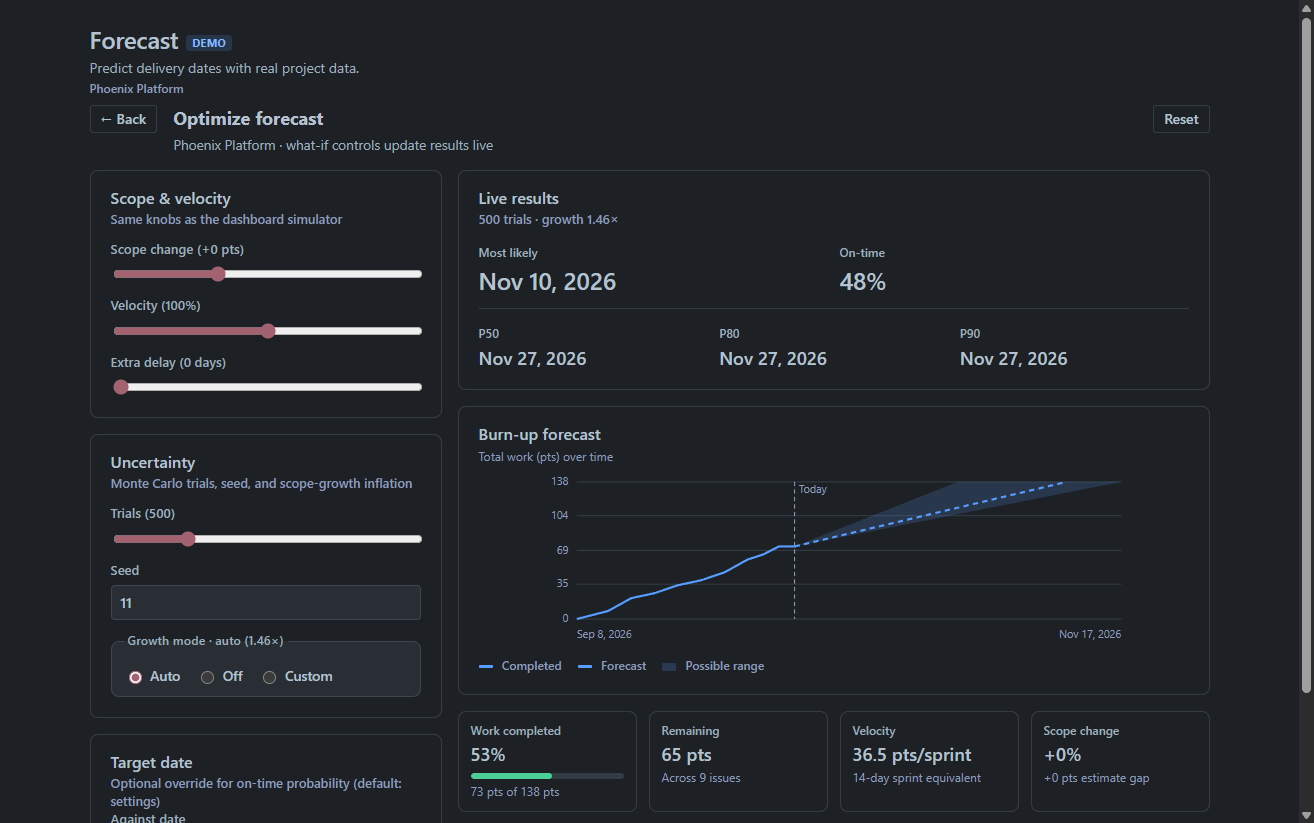
What-if simulator
Adjust scope or throughput to explore how the forecast moves before you commit to a plan change.
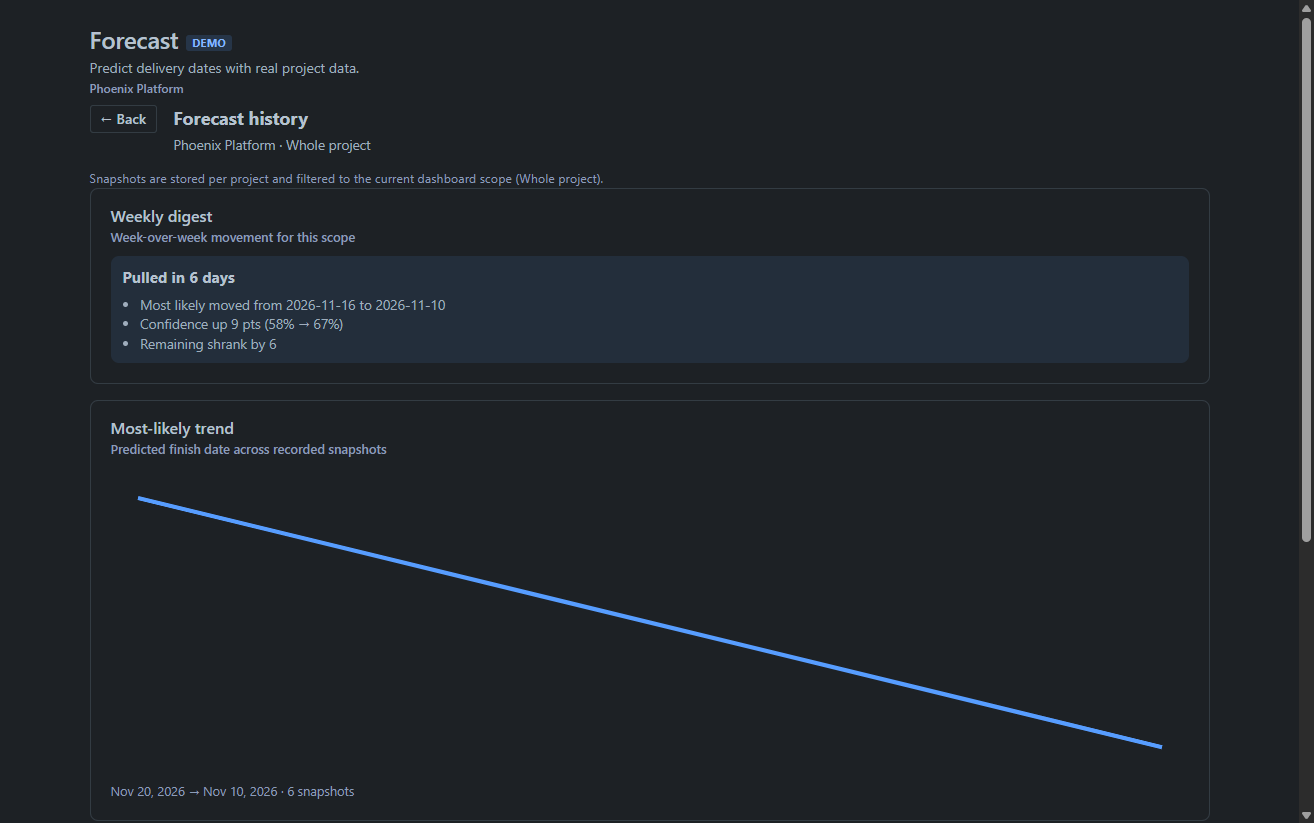
Forecast history
Keep snapshots of past forecasts so you can compare how the commitment and risk picture evolved over time.
Without a license, Premium panels indicate that a paid license is required. Production customers need a real Marketplace license.
Support
Vendor: Hosthob Corp
Contact email:
egbert.jalink@hosthobcorp.comCompany location: Rotterdam, Netherlands
- Documentation: https://hosthobcorp.com/docs/finishline-forecast/
- Support & SLA: https://hosthobcorp.com/sla/
- Privacy policy: https://hosthobcorp.com/privacy
When contacting support, include: Jira Cloud site hostname, project key, time of the issue (with timezone), license type (trial/paid), and a short description or screenshot of the Forecast page state.
We aim to respond within one business day during support hours. Full hours, availability, and severity targets: https://hosthobcorp.com/sla/.
Privacy & security
- Hosting: Atlassian Forge (Runs on Atlassian). Forecast computation and storage stay in Atlassian’s cloud for your site.
- Data read: Issue fields needed for forecasting. No Hosthob-operated database of your Jira issues.
- Data stored: Per-project settings and Premium forecast history in Forge
storage:apponly. - Data written (optional): Epic Due / Start dates when you use Apply to Timeline.
- Egress: No external remotes for issue/forecast data.
- Personal data: The app does not collect end-user PII beyond what Jira already holds and what you choose to write back via Timeline apply. Full policy: https://hosthobcorp.com/privacy.
Scope summary for reviewers
| Scope | Purpose |
|---|---|
read:jira-work | Issue search and field metadata for forecasting |
storage:app | Settings + Premium history |
write:jira-work | Apply forecast dates to Timeline fields when the user opts in |
Uninstall
- Jira → Apps → Manage your apps.
- Find FinishLine Forecast → Uninstall.
- Forge app storage for this app is removed with uninstall (per Atlassian Forge storage lifecycle). Timeline dates already written to issues remain as normal Jira field values.